Password Maintenance & Support
Need help accessing your Nash Community College account? This page provides password maintenance resources to help students manage, reset, or troubleshoot their NCC account.
Login support is now available 24/7!
NCC Regular Hours Login Support:
Monday – Thursday:
8 am – 5 pm
Friday:
8 am – 1 pm
Phone: 252-451-8321
Email: esupport@nashcc.edu
Zoom Virtual Login Assistance: Available Upon Request
After Hours Support:
If you need login or basic Moodle navigation assistance after regular business hours, click the chatbot in the bottom-right corner of this page or call 252-451-8321 to connect with our after-hours MyNash login and account support. Whether you’re studying late, preparing for class, or simply need to regain access to your account, help is available when you need it.
Set Up & Manage Your Account
Your NCC Account is the username and password combination you will use to access most NCC sites and resources. Anywhere that refers to a “Student Login Account” or a “Username and Password” refers to these credentials.
New students and employees will be given their student or employee ID numbers after their enrollment application, class registration or hiring has been processed.
Your NCC email address should be used only for school purposes and not for personal affairs.
- The Student ID number is a seven-digit number assigned by NCC.
- The NCC Account username will be automatically generated and is a combination of your first initial, middle initial, last name, and the last three numbers of your employee or student ID. Students and employees with two last names will include both last names without a hyphen.
- The email address is the combination of your Student ID Account username and @st.nashcc.edu (for students) or @nashcc.edu (for employees). All email addresses are created by NCC; you will never have to create one.
Here is an example:
Student (or employee) name: John C. Doe
Student (or employee) ID #: 1234567
NCC email address: jcdoe567@st.nashcc.edu (student) or jcdoe567@nashcc.edu (employee)
The Admissions Office or the Workforce Development Registrar’s Office will email students with their account information. ITS will email supervisors account information for new employees that supervisors can then share with the employees.
You will need this information on hand to complete the Student ID Account setup process. If you do not have the information, students should contact the Admissions Office or the Workforce Development Registrar’s Office, and employees should contact the Human Resources Office.
Setting up and activating a Student ID Account consists of two simple steps:
- Creating a new password
- Verifying multi-factor authentication
Step 1: Password setup
- Go to Microsoft’s password reset tool
- In the “Who are you?” section, enter your NCC email address
- Click “Next”

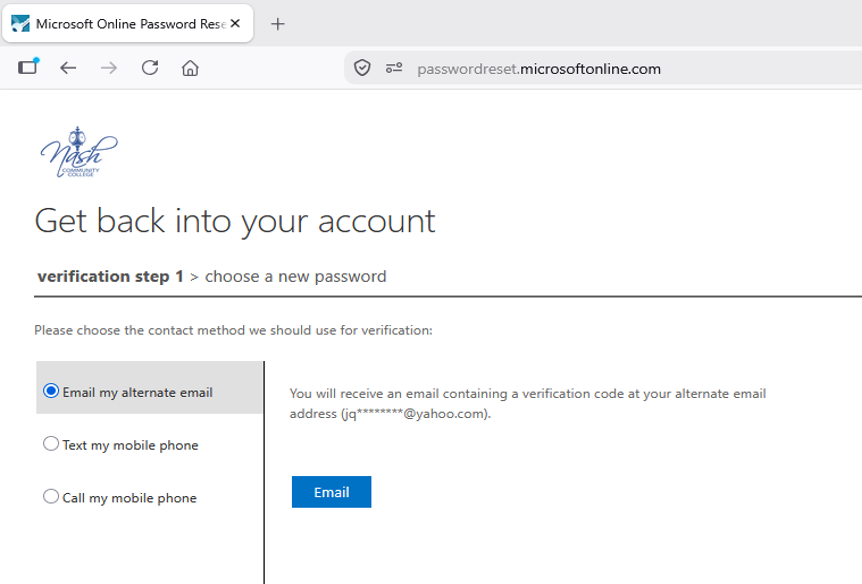
- At “verification step 1,” select “Email my alternate email” and verify the email listed on the screen.
- Click “Email”

- Enter the verification code sent to your personal email.
- Click “Next”

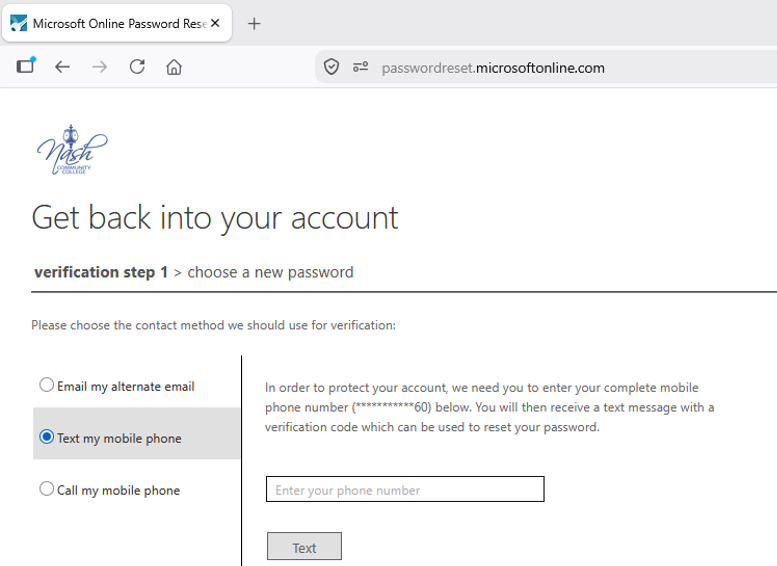
- At “verification step 2,” select “Text my mobile phone” and verify the last two digits of the phone number listed on the screen. You may also select “Call my mobile phone” to receive a call instead.
- Enter your complete phone number, including your area code.
- Click “Text”

- Enter the verification code sent via text to your mobile phone.
- Click “Next”

If your verification methods are out of date or not working properly, contact NCC’s esupport at 252-451-8321 or esupport@nashcc.edu for assistance. - Once your account has been verified, you will be prompted to change your password. Your new password must follow these rules:
- Be at least 12 characters long
- Not contain your account name or more than two consecutive characters of your full name
- Include characters from the following categories:
- Uppercase letters (A-Z)
- Lowercase letters (a-z)
- Numbers (0-9)
- Special characaters such as @ # % : – ! & { } ~ ” ` ‘ <> + = [ ] * $
- Re-enter the new password as confirmation.
- Click “Finish”

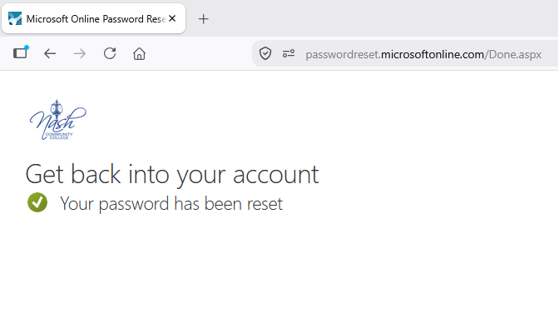
Once your password has been set, you will receive the following message on the screen:

NOTE: Only one password reset is allowed every 24 hours. Subsequent attempts will not succeed. Call NCC’s esupport at 252-451-8321 to bypass this policy.
Passwords are valid for 365 days and are used for all NCC applications.



Step 2: Setting up Microsoft Authenticator for multi-factor authentication
After the password has been successfully updated, you will need to verify your multi-factor authentication (MFA) methods, which help secure your Student ID Account by adding another layer of protection if your account is compromised. Microsoft recommends and will be requiring the use of Microsoft Authenticator. Please have this downloaded before completing the setup below
Your account already has your personal phone number and personal email address associated with your MFA, but you will need to verify the accuracy of the information. MFA methods are verified for all Student ID Accounts every 180 days.
Follow these steps to verify your MFA methods:
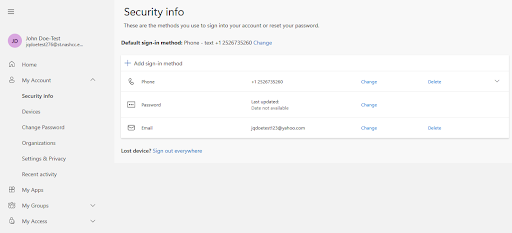
- Go to Microsoft (https://aka.ms/mfasetup) and sign in with your NCC email and recently created password.
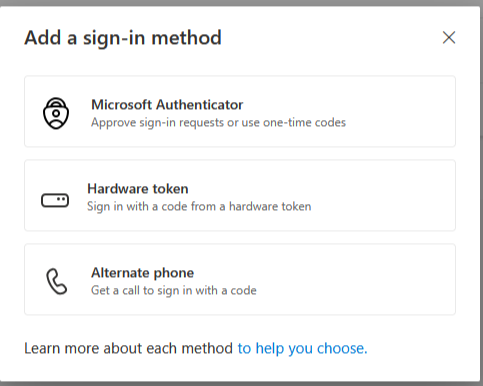
- Click on the + sign beside “Add sign-in method” on the screen.

- Click on Microsoft Authenticator:

- Then, click, Install Microsoft Authenticator if you haven’t already downloaded, then click “Next”

- It’s time to setup your account, click “Next”

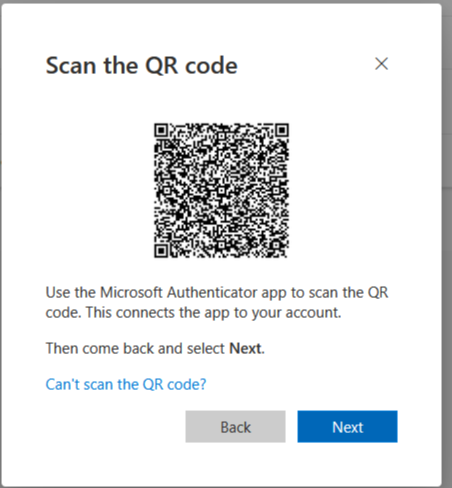
- Scan the QR Code to setup your account, then click on “Next”

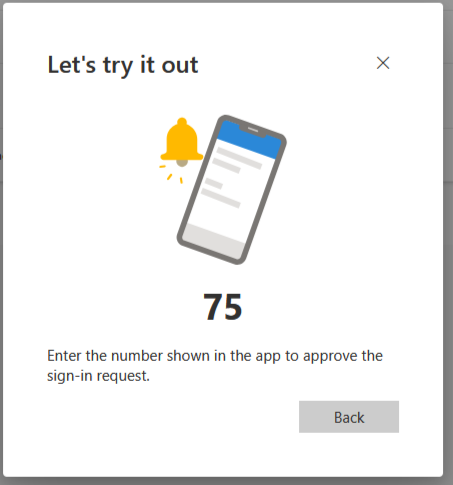
- Put in the displayed number on initiated popup in Microsoft Authenticator

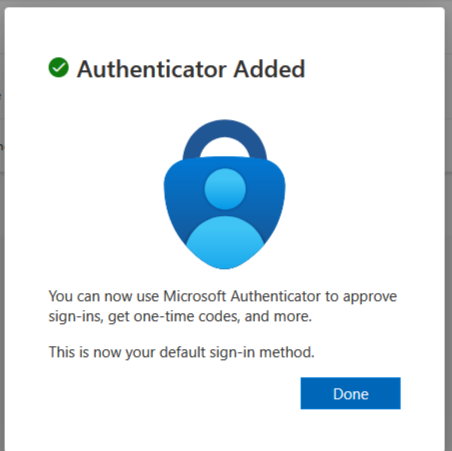
- You have successfully added Microsoft Authenticator as a MFA method. This method will be required beginning February 1, 2027. Click on “Done.”

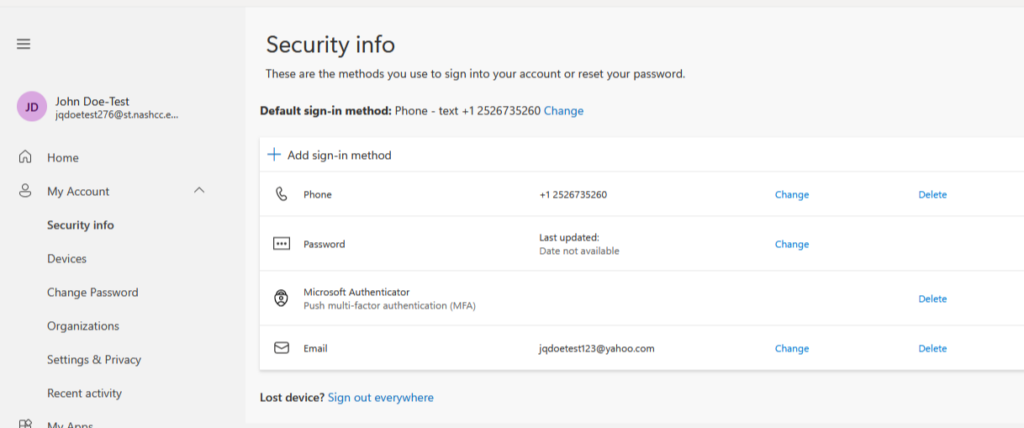
- Your account information should look like the image below after finishing: